CALL MANAGEMENT SYSTEM

Training Home

Jeff
SELF-GUIDED COURSE

Learn CMS by understanding the questions it answers.

This course combines concise explanations, Cedar narration, visual call flows, current CMS Supervisor Web screens, knowledge checks, and hands-on practice. The goal is not to memorize every report. It is to know where to look and how to interpret what CMS is showing you.

BY THE END, YOU SHOULD BE ABLE TO
  • Describe the basic ACD call path
  • Recognize core CMS terms, metrics, and agent states
  • Distinguish ACD calls from direct extension calls
  • Choose Real-Time vs. Historical reporting
  • Find agent login/logout and RONA activity
  • Use Administration and Agent Groups
15lessons11 minnarration
FOUNDATION
01

Orientation

Course purpose and navigation.

02

ACD Call Flow

Caller → VDN → Vector → Skill/Split → Agent.

03

Terms & Definitions

Vocabulary you will see repeatedly.

04

Key Metrics

Service Level, ASA, abandoned calls, ATT, and more.

AGENTS & CALL BEHAVIOR
05

Agent States & Work Codes

AVAILABLE, ACDIN, ACW, AUX, OTHER, and more.

06

ACD vs. Direct Calls

Queue-distributed calls vs. direct extension calls.

07

RONA Fundamentals

Call back to queue; agent to AUX.

CMS TOOLS & REPORTS
08

Administration

Skills/Splits, Agent IDs, and Agent Groups.

09

Real-Time Reporting

Answer questions about what is happening now.

10

Historical Reporting

Answer questions about what happened.

11

Attendance Daily

Login and logout timing.

12

Interval / Daily / Monthly

Choose the right reporting granularity.

13

Historical RONA

Find Redirect-No-Answer events historically.

14

Agent Groups

Reusable sets of agents for reporting.

PRACTICE
15

Hands-On Challenge

Complete the core tasks yourself.

CURRENT INTERFACE

Built around CMS Supervisor Web

The reporting lessons use the screenshots you captured from the current DFCI CMS environment. Quiet weekend Real-Time examples are clearly labeled and can be swapped for active weekday captures later without redesigning the course.

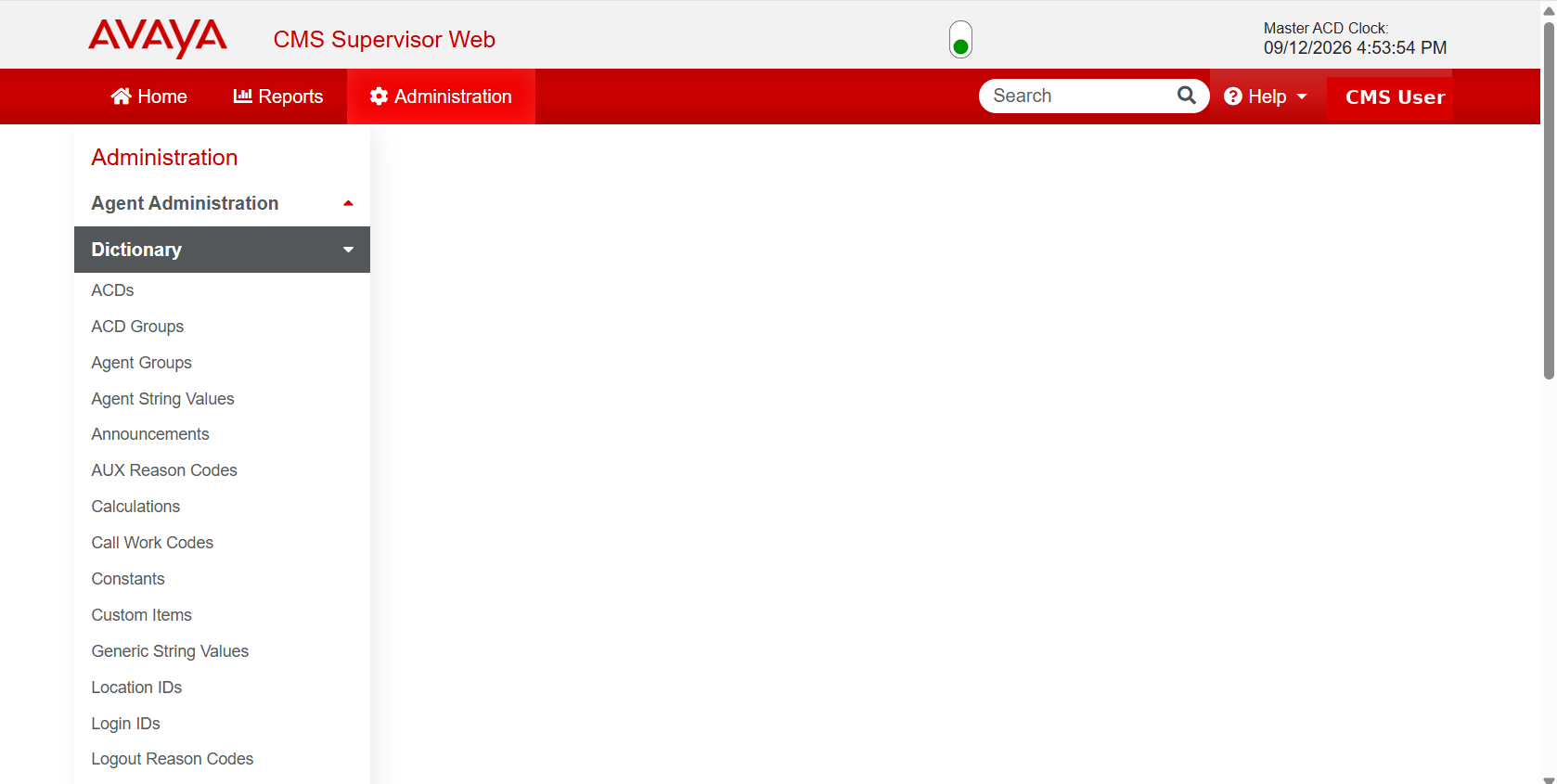
CMS Supervisor Web Administration preview
LESSON 1 OF 15

Orientation

What CMS is for, how the course works, and where Telecommunications fits.

~5 min
NARRATION

Part 1

View transcript

Good morning. Today is going to be a working CMS session, not just a presentation about CMS. I’m going to explain the pieces you need, show you where they live in the system, and then you’ll use your own laptop to follow along.

The goal is not to memorize every report or every field. The goal is to leave knowing where to look, which type of report answers which kind of question, and how to make sense of what CMS is showing you.

If something on your screen looks different from mine, say something. It is much easier to clear that up while we are all looking at the same thing.

NARRATION

Part 2

View transcript

The class is organized in a simple order. We’ll start with the basic CMS and call-center language so the report labels make sense. Then we’ll talk about agent states and what CMS is seeing when an agent is available, on a call, in after-call work, or unavailable.

After that we’ll get into the reports — Real-Time and Historical — and the Administration screens for skills, agents, and Agent Groups.

The last part is hands-on. I’m going to stop driving and have you do the main tasks yourselves. That is really the point of the class: being able to get back to these screens after today without needing somebody to walk you there every time.

NARRATION

Part 3

View transcript

CMS is only one piece of what Telecommunications supports. We also support the voice routing itself, regional locations, cable and wire work, MASCO, pagers and cellphones, voicemail, nurse call, patient TV, and new technology.

For today we’re narrowing that down to the call-center side. CMS gives us visibility into what happened to ACD calls, what agents were doing, what the queue looked like, and how the operation performed over time.

THE BIG IDEA

Learn the question first. Then choose the report.

CMS gives you evidence about call-center activity: what happened to ACD calls, what agents were doing, what the queue looked like, and how the operation performed over time.

Course rule: You do not need to memorize every CMS screen. Learn where the information lives and what question each report answers.
LESSON 2 OF 15

The basic ACD call path

Understand the routing path before interpreting reports.

~5 min
NARRATION

Listen to this lesson

View transcript

This is the basic call path I want you to keep in your head for the rest of the class.

A caller reaches a VDN — a Vector Directory Number. That sends the call into vector programming. The vector is the set of programmed steps that decides what should happen next. One of those decisions is which skill or split should receive the call. The skill is the grouping of agents who are assigned to handle that type of call. If an appropriate agent is available, the call is offered to that agent.

The routing system decides where the call should go. CMS reports what happened while that routing was taking place — the queue behavior, the agent state, the call result, and the historical performance.

So when you are looking at CMS later, you are looking at the evidence left behind by this call flow.

CallerStarts the interaction
#
VDNEntry point
ƒ
VectorRouting steps
Skill / SplitAgent grouping
AgentReceives the offer
IMPORTANT DISTINCTION

Routing and reporting are different jobs.

Routing system

Decides where the call should go.

CMS

Reports what happened while the call moved through that routing.

KNOWLEDGE CHECK

Which component contains the programmed routing steps?

LESSON 3 OF 15

Core terms & definitions

Learn enough vocabulary to make the CMS screens readable.

~6 min
NARRATION

Listen to this lesson

View transcript

You do not need to memorize this slide. I mainly want these words to stop looking foreign when they appear in CMS.

Avaya is the vendor and platform name. CMS is the Call Management System. The switch or PBX is the phone-system core. A skill or split is a grouping of agents assigned to take specific calls. A VDN is the entry point into vector routing, and the vector is the programmed series of routing steps.

A cover-path is the predetermined destination for unanswered direct calls. One-X is the Avaya softphone. CTI is Computer Telephony Integration — for example, InGenius. And when we say queue, we mean the calls that are waiting to be answered.

AvayaVendor / platform name
CMSCall Management System
Switch / PBXPhone-system core
Skill / SplitGrouping of agents assigned to specific calls
VectorSeries of programmed routing steps
VDNVector Directory Number; entry point into routing
Cover-pathPredetermined destination for unanswered direct calls
RONARedirect On No Answer
One-XAvaya softphone
ACDAutomated Call Distribution
CTIComputer Telephony Integration, such as InGenius
QueueCalls waiting to be answered
LESSON 4 OF 15

Metrics answer different operational questions

Start with the question. Then choose the metric.

~6 min
NARRATION

Listen to this lesson

View transcript

The easiest way to remember these metrics is by the question each one answers.

Service Level asks whether calls were answered within the defined target. ASA is Average Speed of Answer — how long callers waited before someone answered. An abandoned call is a caller who disconnected before answer, and AAT is Average Abandoned Time.

ATT is Average Talk Time for ACD calls. Available Time is the time the agent spends waiting for the next ACD call.

When somebody asks you for a report, listen to the question before you pick the number. How long were callers waiting is not exactly the same question as did we meet service level.

SL
Service Level

Were calls answered within the defined target?

ASA
Average Speed of Answer

How long did callers wait before answer?

AAT
Average Abandoned Time

How long did callers wait before abandoning?

ATT
Average Talk Time

How long did ACD calls stay connected with agents?

AVAIL
Available Time

How long was the agent waiting for the next ACD call?

STAFF
Staffed Time

How long was the agent logged in?

KNOWLEDGE CHECK

A manager says, “Callers are waiting too long before we answer.” Which metric would you look at first?

LESSON 5 OF 15

Agent states & work codes

An agent can be logged in and still move through several operational states.

~8 min
NARRATION

Part 1

View transcript

An agent can be logged in all day and still move through several different states. That is why logged in and available for an ACD call are not the same thing.

AVAILABLE means the agent is waiting for the next ACD call. RINGING means the ACD call is being offered. ACDIN means the agent is handling the inbound ACD call. After the call, the agent may go into ACW — After Call Work.

AUX means the agent is unavailable for additional ACD calls until the agent is made available again. AUX can be intentional, and it can also happen because of RONA after a no-answer event.

UNKNOWN is generally temporary — CMS does not currently recognize the state and is waiting for the next change.

NARRATION

Part 2

View transcript

LOGON and LOGOFF are straightforward. ACDIN means the agent is on an incoming ACD call. ACW is after-call work; ACWIN and ACWOUT describe call activity while the agent is in ACW.

AUX is unavailable. AUXOUT is an outbound call while the agent is in AUX. OTHER can mean hold, dialing, or work associated with another skill that is not the one you are currently viewing.

RINGING is the time the ACD call is ringing on the agent’s phone. UNKNOWN means CMS cannot identify the current state and is usually temporary.

Again, I do not want you memorizing the list. I want you to recognize these when they show up on a report.

AVAILABLE

Waiting for next ACD call

RINGING

Call is being offered

ACDIN

Handling inbound ACD call

ACW

After Call Work

LOGONAgent logged into a skill
LOGOFFAgent logged out of a skill
ACDINIncoming ACD call
ACWAfter Call Work / unavailable while completing necessary work
ACWINInbound call while in ACW
ACWOUTOutbound call while in ACW
AUXUnavailable for additional ACD calls
AUXOUTOutbound call while in AUX
OTHERHold, dialing, or activity in another skill
RINGINGACD call is ringing at the agent
UNKNOWNCMS does not currently recognize the state; usually temporary
KNOWLEDGE CHECK

Which statement is correct?

LESSON 6 OF 15

ACD calls vs. direct extension calls

Know what type of call you are looking at before interpreting CMS.

~5 min
NARRATION

Listen to this lesson

View transcript

This distinction matters when you interpret CMS.

An ACD call comes through the queueing path we just looked at — VDN, vector, skill, then agent. A direct extension call, sometimes called a back-line call, is different. The caller is dialing the agent’s extension directly.

If that direct call is not answered, it can follow the station’s cover-path or voicemail behavior. That is not the same operational event as an unanswered ACD call in the queue.

So before you draw conclusions from a report, make sure you understand what kind of call you are looking at.

ACD CALL

Queue-distributed

Follows the VDN → Vector → Skill/Split → Agent path. CMS reports queue and ACD activity around this call.

DIRECT / BACK-LINE CALL

Extension-directed

The caller dials the agent extension directly. Unanswered behavior can follow the station cover-path or voicemail and should not automatically be interpreted as queue performance.

KNOWLEDGE CHECK

A caller dials an agent’s extension directly. Which type of call is this?

LESSON 7 OF 15

RONA — Redirect On No Answer

Understand what happens to both the call and the agent.

~5 min
NARRATION

Listen to this lesson

View transcript

RONA stands for Redirect On No Answer.

In this training, when an available agent receives an incoming ACD call and does not answer it within four rings, two things happen.

The agent is placed into AUX, and the ACD call is redirected back to the skill queue so it can be offered to the next available agent.

That means the caller is not simply lost because one agent did not answer. The call goes back into the queue. At the same time, the agent state changes so the system does not immediately keep sending new ACD calls to the same agent.

Later we’ll use the Historical RONA report to find these events after the fact.

1ACD call offered

Agent is available and the call rings.

2No answer within 4 rings

The configured threshold is reached.

3ACall → Queue

Call returns to the skill queue for the next available agent.

3BAgent → AUX

Agent is placed into AUX.

KNOWLEDGE CHECK

After a RONA, what happens?

LESSON 8 OF 15

Administration: lookup tools behind reporting

Use Skills/Splits, Agent IDs, and Agent Groups before you run reports.

~8 min
NARRATION

Part 1

View transcript

In the older version of this class, we referred to these lookup tools generally as the CMS Dictionary. In the current CMS Supervisor Web interface, the pieces we need are under Administration.

There are three areas I want you to know: Skills and Splits, Agent IDs, and Agent Groups.

Before we start running reports, I want everybody to make sure they can get to those areas.

NARRATION

Part 2

View transcript

I’m going to start with a skill we already know. First I’ll show you where the skill appears. Then we’ll look up an agent and confirm how the Login ID maps to the agent name.

The reason we’re doing this before Reports is that these same identifiers become the inputs to the reports. If you know how to look them up, you are less likely to run the right report for the wrong person or skill.

CURRENT CMS SCREEN

Administration home

The current CMS Supervisor Web Administration area.

CURRENT CMS SCREEN

Skills / Splits

Use this area to identify the skill name and skill ID.

CURRENT CMS SCREEN

Agent IDs

Use this area to confirm agent names and Login IDs.

KNOWLEDGE CHECK

You need to confirm an agent’s Login ID before running a report. Where should you start?

LESSON 9 OF 15

Real-Time reporting

Use when the question is “what is happening now?”

~8 min
NARRATION

Part 1

View transcript

Real-Time reports answer one basic question: what is happening now?

If I want the current state of one agent, I can use the Agent Report. If I want the current state of a defined group, there is an Agent Group Report. Skill reports show the current skill picture. Queue Agent Summary gives a queue-and-agent view, and the integrated comparison report lets us compare skills.

You do not need to memorize every path. If the question is about the current condition, start in Real-Time.

NARRATION

Part 2

View transcript

When you open a report like this, do not try to interpret every field at once.

Start with the operational questions. Are calls waiting? How many agents are staffed? How many are actually available to take another ACD call? What do the speed-of-answer or service-level fields tell us about the current condition?

The other thing to remember is that Real-Time is a snapshot. It tells you what is happening at this moment. It does not tell you the whole story of the day.

CURRENT CMS SCREEN

Real-Time report navigation

Weekend capture — live values may be blank

The report menu gives you the available Real-Time report families.

CURRENT CMS SCREEN

Real-Time Agent Report

Weekend capture — live values may be blank

Use for the current state of an individual agent.

CURRENT CMS SCREEN

Real-Time Skill Report

Weekend capture — live values may be blank

Start with calls waiting, staffed agents, available agents, and speed/service-level context.

READ THE REPORT BY QUESTION
Are calls waiting?Look at queue-related fields.
Who can take a call?Compare staffed vs. available agents.
How is the queue doing now?Use ASA and service-level context.
KNOWLEDGE CHECK

A supervisor asks, “What state is this agent in right now?” Where do you start?

LESSON 10 OF 15

Historical reporting

Use when the question is “what happened during a reporting period?”

~7 min
NARRATION

Listen to this lesson

View transcript

Historical reporting is where we go when we need to reconstruct what happened during a reporting period.

Attendance Daily is useful for login and logout timing. Agent Group Summary gives group-level activity. Split and Skill reports show skill performance. Agent AUX reports unavailable time. The RONA report finds no-answer events. Service Level Interval lets us look at performance by interval, and Trace by Location gives more detailed agent trace information.

The simple rule is: Real-Time is now. Historical is what happened during the period you are investigating.

CURRENT CMS SCREEN

Historical report navigation

Historical reporting organizes agent, skill, and designed reports by the question you need to answer.

Call ProfileHistorical → Split/Skill → Call Profile → Daily
AttendanceHistorical → Agent → Attendance → Daily
Agent Group SummaryHistorical → Agent Group Summary → Daily
Skill ReportHistorical → Split/Skill → Report → Daily
Agent AUXHistorical → Agent → AUX → Daily
RONAHistorical → Designer → Split/Skill → RONA
Service Level IntervalHistorical → Split/Skill → Service Level Interval
Trace by LocationHistorical → Agent → Trace by Location
KNOWLEDGE CHECK

You need to know when an agent logged in yesterday. Which category should you use?

LESSON 11 OF 15

Attendance Daily

Answer “when did the agent log in and out?”

~5 min
NARRATION

Listen to this lesson

View transcript

For this example, the question is very specific: when did this agent log in and out?

Attendance Daily is designed for that question. The key is getting the inputs right — the correct agent, the correct date range, and the period you actually mean to investigate.

And remember: seeing that somebody was logged in does not automatically mean that person was available for ACD calls the entire time.

CURRENT CMS SCREEN

Historical Agent Attendance — Daily

Choose the correct agent and date range before interpreting the results.

IMPORTANT

Logged in does not mean continuously available.

Attendance establishes login/logout timing. If you need to understand availability, AUX, ACW, or other states, pair Attendance with the appropriate state or AUX reporting.

LESSON 12 OF 15

Historical skill reports: three levels of detail

Choose the granularity that matches the question.

~7 min
NARRATION

Listen to this lesson

View transcript

This slide is really about granularity.

Interval is what I use when I need to understand what happened within the day — for example, whether performance deteriorated around lunch.

Daily is better when the question is one day compared with another day.

Monthly gives you the broader trend or summary.

These are not three random report choices. They are three different levels of detail for answering different versions of the same question.

CURRENT CMS SCREEN

Interval

Best for what happened within the day.

CURRENT CMS SCREEN

Daily

Best for comparing day-level performance.

CURRENT CMS SCREEN

Monthly

Best for a broader trend or summary.

KNOWLEDGE CHECK

A manager says service was poor around 12:30 yesterday. Which view would you start with?

LESSON 13 OF 15

Historical RONA reporting

Find missed ACD offers without assuming why they happened.

~6 min
NARRATION

Listen to this lesson

View transcript

Earlier we talked about what RONA does in real time. This is where we find the event historically.

A RONA record tells us that an ACD call was offered and was not answered within the configured threshold. The call was returned to the queue, and the agent went to AUX.

What the record does not tell us by itself is why the agent did not answer. The report is evidence that the no-answer event occurred. It is not automatically evidence of the cause.

Establish what happened first. Then, if necessary, investigate the surrounding conditions.

CURRENT CMS SCREEN

Historical RONA / Redirect-No-Answer report

Use the record to establish that the no-answer event occurred.

Do not over-interpret the record: a RONA entry is evidence of a no-answer event. By itself, it does not prove why the agent did not answer.
KNOWLEDGE CHECK

What can a RONA record establish by itself?

LESSON 14 OF 15

Agent Groups

Make repeated reporting easier and more consistent.

~6 min
NARRATION

Listen to this lesson

View transcript

If you repeatedly report on the same set of agents, an Agent Group saves you from rebuilding that list every time.

You choose the agents, give the group a useful name, save it, and then use that group in reports.

The naming matters. A good name should make the department, function, and purpose obvious so somebody else can understand the group without opening it.

For training, I would rather show you an existing group than create unnecessary production objects just to prove the Save button works.

CURRENT CMS SCREEN

Agent Groups

Saved groups let you report on the same set of agents repeatedly.

CURRENT CMS SCREEN

Create / Edit Agent Group

Use meaningful names; avoid creating unnecessary production groups during training.

KNOWLEDGE CHECK

What is the main benefit of an Agent Group?

LESSON 15 OF 15

Hands-On Challenge

Stop watching. Start navigating.

~15–20 min
NARRATION

Hands-On Challenge

View transcript

Now I’m going to stop driving.

Use your own CMS session and work through the tasks on this slide. The point is not speed. The point is being able to find the path yourself, choose the correct input, run the report, and recognize what you are looking at.

If you get stuck, ask. But give yourself a minute to find it first. That is how you build the muscle memory you will need when somebody asks you for this information three weeks from now.

If your permissions are different from the person next to you, that is okay. Pair up where it makes sense.

YOU DRIVE

Complete these tasks in your own CMS session.

  1. 1Find a skill you can access in Administration.
  2. 2Find an Agent ID and confirm the agent name / Login ID.
  3. 3Run Attendance Daily for an approved agent and date.
  4. 4Open a Real-Time Skill Report and identify queue / staffing fields.
  5. 5Run a Historical Skill report using Interval, Daily, and Monthly.
  6. 6Open the RONA report and identify one record if available.
  7. 7Optional: find an Agent Group used by your area.
The point is not speed. Find the path yourself, choose the correct input, run the report, and recognize what you are looking at.
NARRATION

Course wrap-up

View transcript

That is the core of what I wanted you to leave with today.

The three things I would remember are: Administration is where we look up skills, agents, and Agent Groups. Real-Time is where we go for what is happening now. Historical is where we go to understand what happened during a defined reporting period.

And before you interpret a result, be clear whether you are looking at an ACD call or a direct extension call.

If something does not make sense after the class, use the Telecom support path shown here. We would rather look at the specific example with you than have you guess at what the report means.

What questions do you have?

THREE RULES TO KEEP
1Real-Time

What is happening now?

2Historical

What happened during the reporting period?

3Call type matters

ACD and direct extension calls behave differently.

REFERENCE

CMS Quick Reference

Start with the question. Then go to the report that answers it.

I need to know…Start here
What state is an agent in right now?Real-Time → Agent → Agent Report
What is happening in a skill right now?Real-Time → Split/Skill → Skill Report
How is a defined group of agents doing right now?Real-Time → Agent → Agent Group Report
When did an agent log in or out?Historical → Agent → Attendance → Daily
How much AUX time did an agent have?Historical → Agent → AUX → Daily
How did a skill perform during the day?Historical → Split/Skill → Report → Interval
How did a skill perform by day?Historical → Split/Skill → Report → Daily
What is the broader monthly trend?Historical → Split/Skill → Report → Monthly
Did an agent have a RONA?Historical → Designer → Split/Skill → RONA
How did service level change by interval?Historical → Split/Skill → Service Level Interval
I need detailed agent trace information.Historical → Agent → Trace by Location
What is this skill ID / agent Login ID?Administration → Skills/Splits or Agent IDs
NOWReal-Time

Current state or queue condition.

THENHistorical

What happened during a defined period.

LOOKUPAdministration

Skills, Agent IDs, and Agent Groups.

SUPPORT

Need help with a specific CMS example?

Phone: 617-632-2333

Web: dfcionline.org → Work Orders → Work Order Request → Telecom